Introduction
This article is the sixth part of a 10 part series that I posted as a tutorial for the readers. I will go through step-by-step going over how I created a link shortener app from scratch.
In this post, we will connect our frontend to the database through API endpoint that we created in the last part (here)
Adding link to the database
Form to add a new link
In this part, we will add an action to our form that we created in the frontend. Adding database is usually done with a POST method, this can be done by adding action="/api/link/add" and method="POST".
Our final form will look like this
<form class="form-inline" action="/api/link/add" method="POST">
    <div class="input-group col-1">
        <button type="button" class="btn btn-warning btn-rounded btn-icon">
            <i class="ti-bolt"></i>
        </button>
    </div>
    <div class="input-group col-4">
        <div class="input-group-prepend">
            <span class="input-group-text">https://link.kecil.com/</span>
        </div>
        <input type="text" name="source_id" class="form-control"
            placeholder="Source ID" aria-label="Source ID">
    </div>
    <div class="input-group col-5">
        <input type="url" name="target_url" class="form-control"
            placeholder="Target URL" aria-label="Target URL">
    </div>
    <div class="input-group col-2">
        <button type="submit" class="btn btn-primary mb-2">Shorten it!</button>
    </div>
</form>
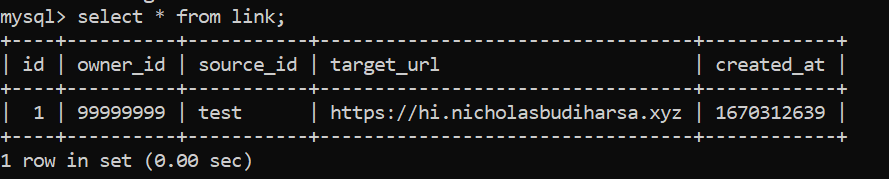
Indeed when we test it with the following input:

We can view a new record in the database.
Ask for a new link
As before in the last part, we have set up an API endpoint for our yellow button. The idea is so that when pressed, we can have a free link automatically generated and added in the source id.
We can do so by modifying the button as such
<button onclick="askForNewLink()" type="button"
    class="btn btn-warning btn-rounded btn-icon">
    <i class="ti-bolt"></i>
</button>
and dont forget to add a script tag in the bottom of the page by doing this:
<script>
    function askForNewLink() {
        fetch("/api/free-link").then((res) => {
            return res.json()
        }).then((res) => {
            console.log(res)
            if (res.inDb) {
                askForNewLink()
            } else {
                document.querySelector("input[name=source_id]").value = res.uniqueId
            }
        })
    }
</script>
Thus, the button now will work when clicked.
Conclusion
In this part, we have connected our front-end with our back-end. In the next part, we will finally enable user management system where we will allow user to be able to login, register, and modify their account. If you are stuck with anything, feel free to visit the code in here. Let us now go to the next part 😊