Introduction
This article is the ninth part of a 10 part series that I posted as a tutorial for the readers. I will go through step-by-step going over how I created a link shortener app from scratch.
In this post, we will finally make our app go live and make accessible through an IP Address.
In order to proceed with this, we will need to have Digital Ocean account with payment billing (You can set it up here).
Create a droplet
In your dashboard, top right corner, you will need to click on create Droplet,
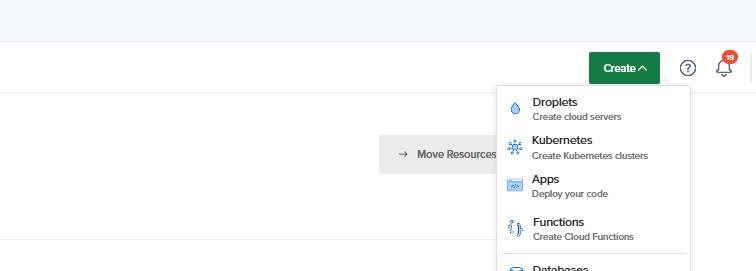
and pick a configuration that is suitable for you. I decided to go with this configuration:
- Server location : Frankfurt
- Ubuntu 22.10
- Premium AMD : 1GB CPU, 25GB SSD, 1000GB Transfer
- Authentication using password
Connecting to your server
Depending on your configuration, you will have different methods to authenticate, since I used SSH, I will use a tool called Putty to connect to the server. If you are in a unix distribution OS, you can connect by running:
ssh root@ip.addressThen input your password.
Install dependencies
For the Kecil app we will need to install the following dependencies:
- Node.js and npm
- MySQL
Install Node and npm
The following command will install Node.js and npm
sudo apt update
sudo apt install nodejs
sudo apt install npm
You can check your installation worked well by running the following:
node -vand it should outputs something like this (Versions may differ):
v18.7.0Install MySQL
Run the install by the following command:
sudo apt install mysql-serverThen install MySQL using the following command and follow along the instructions
sudo mysqland run the following to enable root login by password
ALTER USER 'root'@'localhost' IDENTIFIED WITH mysql_native_password BY 'password';and
exitand finally:
sudo mysql_secure_installationYou will be prompted to renew the root password follow along the instructions and at the end, you should have mysql installed
Clone Repository
Run the following command to clone the repository.
git clone https://github.com/Nicholas-t/KECILThen create a .env file in the root folder by running:
cd KECIL && nano .envAnd fill .env file with the following command
MY_SQL_HOST=127.0.0.1
MY_SQL_USER=root
MY_SQL_PWD=<dont forget to change your mysql password here>
PORT=7000
SESSION_SECRET=SESSION_SECRET
Install packages
You need to install the packages needed by running the following line
npm ito check everything works well, simply run node app.js and it should be working and listening to port 7000.
Install Nginx
To install, run the following:
sudo apt update
sudo apt install nginx
sudo ufw allow 'Nginx HTTP'
To check everything works as expected, run the following:
systemctl status nginxand you should see something like the following
● nginx.service - A high performance web server and a reverse proxy server
     Loaded: loaded (/lib/systemd/system/nginx.service; enabled; preset: enabled)
     Active: active (running) since Mon 2023-05-22 08:13:38 UTC; 1min 0s ago
       Docs: man:nginx(8)
    Process: 9594 ExecStartPre=/usr/sbin/nginx -t -q -g daemon on; master_process on; (code=exited, status=0/SUCCESS)
    Process: 9595 ExecStart=/usr/sbin/nginx -g daemon on; master_process on; (code=exited, status=0/SUCCESS)
   Main PID: 9679 (nginx)
      Tasks: 2 (limit: 1116)
     Memory: 5.2M
        CPU: 35ms
     CGroup: /system.slice/nginx.service
             ├─9679 "nginx: master process /usr/sbin/nginx -g daemon on; master_process on;"
             └─9682 "nginx: worker process"
and finally, if you go to your IP Address using your browser, you should see something like this:
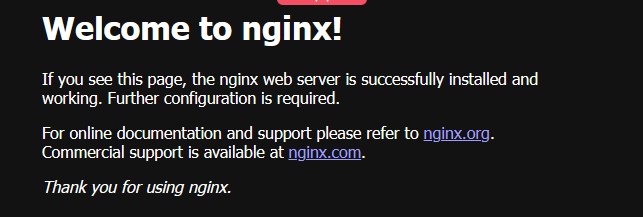
If you see that, you have installed Nginx correctly
Run on pm2
Install pm2 by running the following
sudo npm install pm2@latest -gthen run your app using pm2 by running
pm2 start app.jsIn order for pm2 to start the app automatically after startup, run the following:
pm2 startup systemd
pm2 save
sudo systemctl start pm2-root
Setup Nginx for the right Port as default
You can edit your nginx default configuration, run the following:
sudo nano /etc/nginx/sites-available/defaultand edit the location / blocks:
server {
...
    location / {
        proxy_pass http://localhost:7000;
        proxy_http_version 1.1;
        proxy_set_header Upgrade $http_upgrade;
        proxy_set_header Connection 'upgrade';
        proxy_set_header Host $host;
        proxy_cache_bypass $http_upgrade;
    }
...
}
Conclusion
As we finish this part, your app is now live on your IP Address 😊 If you are stuck with anything. In the next part we will connect a domain to your app and secure it using Lets Encrypt!. Here is the next part