Introduction
This article is the eighth part of a 10 part series that I posted as a tutorial for the readers. I will go through step-by-step going over how I created a link shortener app from scratch.
In this post, we will have a little bit of fun by adding our own personalized theme, starting by our own logo, and adding a personalized css template
Adding our own logo
In this part we will add our own logo, you can design it with Canva quite easily and add into our /public/images folder. For me, I ended up deciding with the logo below:

This is where you can tell that I have zero deisgn skill 😂
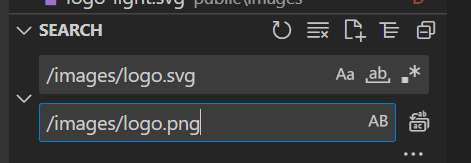
In vscode, you can do a replace all quite easily by doing the following:
Adding css
Now that we add our own logo, it is time for us to add our own tempalte, first we need to create a template.css in the /public/css folder, which we can import in all of our html files by adding the following line:
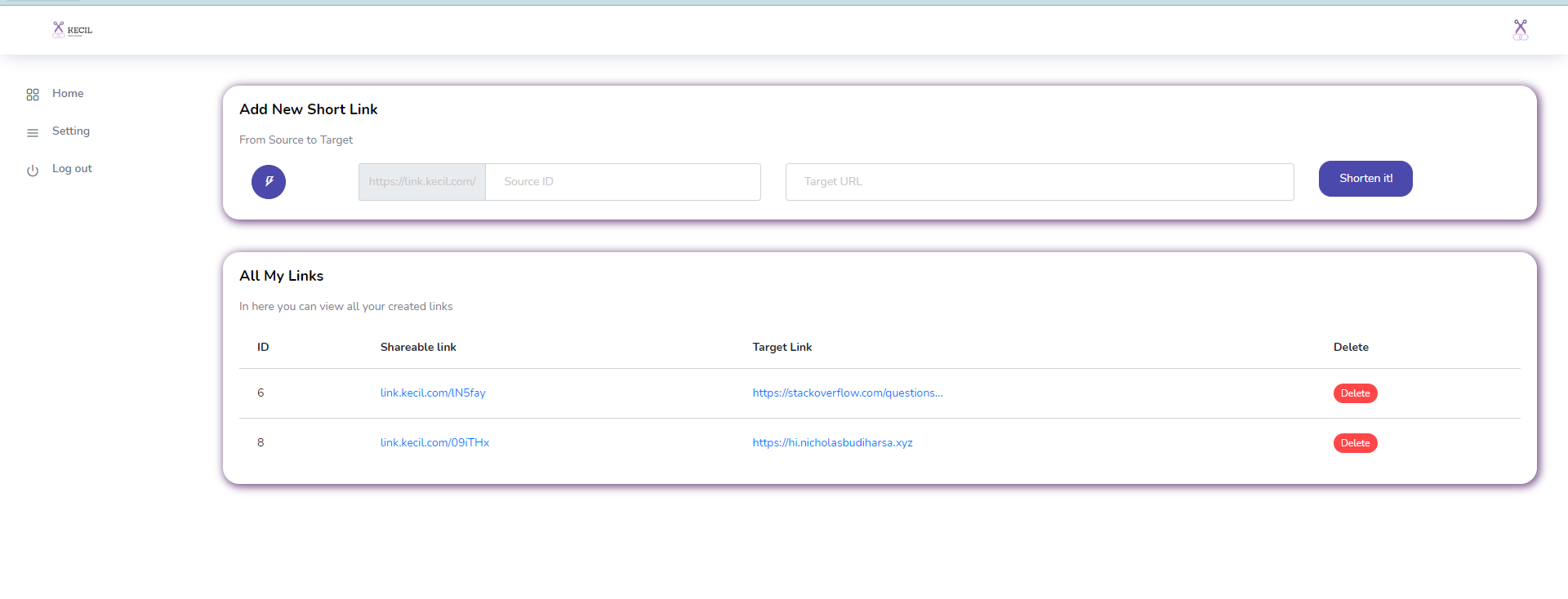
<link rel="stylesheet" href="/css/template.css"> This is where you can play around and overwrite the original theme that was given. My final css give my app a modern taste:
.content-wrapper {
    background: #ffffff !important;
}

.auth .auth-form-light {
    background: #ffffff;
}

.auth .auth-form-light {
    border-radius: 10px;
    box-shadow: 5px 5px 10px 2px rgba(0, 0, 0, .8);
}

.card {
    box-shadow: 2px 2px 10px 2px rgba(91, 46, 110, 0.8);
}

.footer {
    background: #ffffff;
}
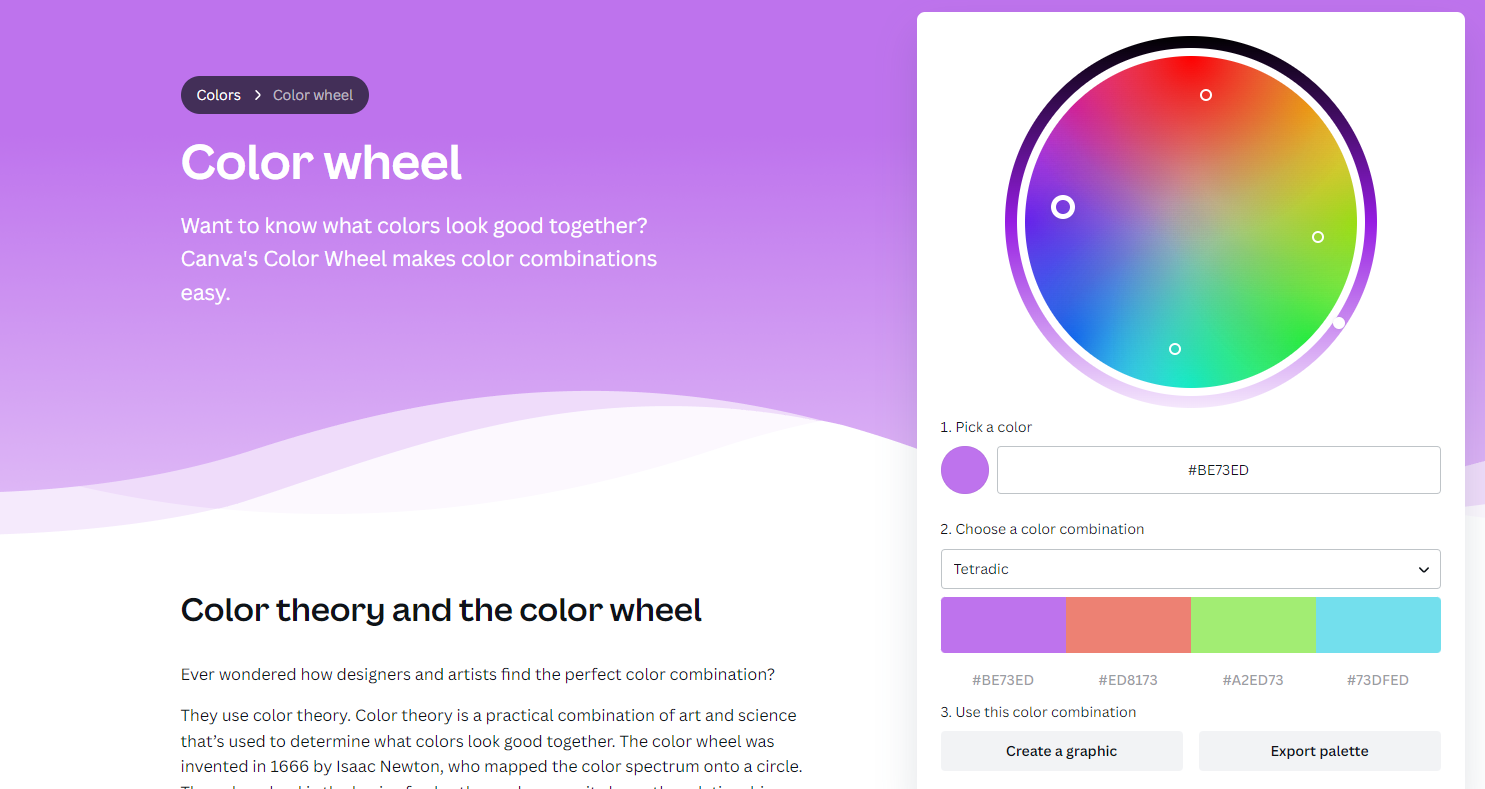
Feel free to play around with the auto palette generator provided by the amazing team at canva here
Conclusion
As we finish this part, your app is now yours 😊 If you are stuck with anything, feel free to visit the code in here. In the next part we will really put our app live on a digital ocean droplet! and with that, we are 2 steps away from being done with this project. Let us now go to the next part