Introduction
This article is the second part of a 10 part series that I posted as a tutorial for the readers. I will go through step-by-step going over how I created a link shortener app from scratch.
In this post, I will go through the thoughts and process of creating the data base of the app. That includes installing the necessary libraries, and create our tables
Installing libraries
Last time we have initialized our project by running npm init which creates package.json in our currently empty folder, now lets first install some dependencies for the part 2
npm i mysql dotenvIn the code above, we installed the mysql library which will allow us to interact with our mysql server that we installed in part 1, and dotenv which allow us to add environment variable for our app.
As you can see, this adds a new folder called node_modules in your root folder, now is a good time for us to add a .gitignore file which allow us to tell github to not include this folder in our version control, because this folder includes all our dependencies which we will install separately in the server.
your .gitignore can look like this:
node_modules/Database plan
So first and foremost, we should decide on the Database structure that needs to be created for the final product.
This is what I came up with, however feel free to add more tables and add more complexity to the app. In the meantime, we will stick with the simplest form of a link shortening app which is just 3 tables with the following specification:
- user(#id, first_name, last_name, email, created_at, last_seen)
- pw(#user_id, hashed_password) - A separate table to store the user’s password
- link(#id, owner_id, source_id, target_url, created_at)
Simple enough right ? The password is separated so that when we query the database of the users, we will not query the hashed password everytime and instead only query it when necesary (i.e. login, register, etc)
Write the MySQL Queries
Writing the tables above is not so difficult, it can be done simply by writing a CREATE TABLE command. In my implementation, I usually add an IF NOT EXISTS statement, that way the script can be launched everytime the app is run in a new machine and it will always try to set up the table.
Users table
CREATE TABLE IF NOT EXISTS user (
    id int PRIMARY KEY AUTO_INCREMENT,
    first_name  varchar(100) NOT NULL DEFAULT '',
    last_name  varchar(100) NOT NULL DEFAULT '',
    email  varchar(100) NOT NULL DEFAULT '',
    created_at  int(11) NOT NULL DEFAULT 0,
    last_seen  int(11) NOT NULL DEFAULT 0
)
PW Table
CREATE TABLE IF NOT EXISTS pw (
    user_id int NOT NULL PRIMARY KEY UNIQUE,
    hashed_password  varchar(100) NOT NULL
)
Link Table
CREATE TABLE IF NOT EXISTS link (
    id int PRIMARY KEY AUTO_INCREMENT,
    owner_id int NOT NULL,
    source_id varchar(100) NOT NULL DEFAULT '',
    target_url TEXT NOT NULL,
    created_at int(11) NOT NULL DEFAULT 0
)
Create a “database handler”
The idea behind a database handler is to create our own connector to the MySQL database and all commands and functions that are directly dealing with the database will be done in this connector.
For the sake of organizing our codes, lets create a new folder called packages and inside it, create a new folder called db where we can add our databasehandler in a file called db.js
From my past projects, I have created a boiler plate template for the handler, and feel free to use it. Also, we can add the queries to create the table on the previous part in a separate queries.js and import it in the database handler
var mysql = require('mysql');

var {
    createPwTable,
    createUserTable,
    createLinkTable
} = require('./queries.js');

class databaseHandler {
    /**
     * @constructor
     */
    constructor() {
        this.Description = 'Database Handler for Kecil';
        this.con = null;
    }

    /**
     * start - initialization of database socket
     * @param {object} conf - configurations for database
     * @returns
     */
    async start(conf, cb) {
        conf.insecureAuth = true;
        this.con = mysql.createConnection(conf);

        this.con.connect(function (err) {
            if (err) {
                console.log(err)
            }
        });
        this.con.query("CREATE DATABASE IF NOT EXISTS kecil", function (err, result) {
            if (err) {
                console.log(err)
            }
        });
        this.con.query("use kecil", function (err, result) {
            if (err) {
                console.log(err)
            }
        });
        this.createTable(createPwTable, "pw");

        this.createTable(createUserTable, "user");

        this.createTable(createLinkTable, "link");
        cb()
    }

    /**
     * createTable - helper function to run query
     *
     * @param {String} query
     */
    async createTable(query) {
        this.con.query(query, function (err, result) {
            if (err) {
                console.log(err)
            }
        });
    }
}

module.exports = databaseHandler;
For now it only includes the method start which will allow us to establish a connection to our database by passing a configuration object (which will be useful in the next step), and createTable which allow us to add the queries to create the table and run it one by one.
Create the app.js
now in your root folder, you can create a new file called app.js and it will be our main gate to our app.
lets first import the database handler created in the previous step and initialize our database.
add this to your app.js
let db = null

const databaseHandler = require('./packages/db/db');
db = new databaseHandler();
const sqlConf = {
    "host": "localhost",
    "user": "root",
    "password": "CHANGE YOUR MYSQL PW",
    connectTimeout: 30000,
    charset: 'utf8mb4'
}
db.start(sqlConf, () => {
    console.log("SUCCESS CONNECT TO DB")
})
Now you should be able to run your app by running node app.js.

Congratulations! You just run your app for the first time 🤯. Right now what it does is it just creates a table and nothing else, but dont worry! we are only on part 2 😉 and we have 8 more parts to go
Create a “.env”
Before we finish this part, it is worth taking some time to do a little bit of “Good practices”. What we did now was we added a database authentication in our app, which is nice. However, we NEVER want to hard code the authentication credentials in the code. Imagine if your public code in github contains sensitive information, it will be terrible. This is where the library dotenv comes in.
We can create a file called .env in the root folder of our program where we add environment variables such as our MySQL password, or our email password, etc, and call the dotenv library at every program.
And ofcourse we need to add a .gitignore file to let github know to not take into account our .env file in the version control.
your .env file can look something like this:
MY_SQL_HOST=localhost
MY_SQL_USER=root
MY_SQL_PWD=MY_MYSQL_PASSWORD
and your .gitignore can look like this:
.env
node_modules/
Conclusion
By the end of this, your folder should look like this:
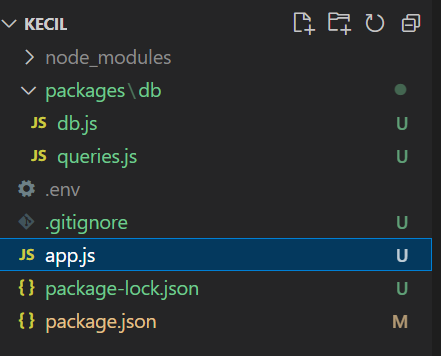
When in doubt, always feel free to look at the following code checkpoint for this part in github here.
Now we have set up our database, and in the next article we will still be in the topic of database where we add more method for our database such that adding new records, modifying, and removing records in the Part 3 of the series 🤩