Introduction
Automation for Applying Jobs With Linkedin is the perfect tool for quickly and easily applying job offers to your LinkedIn profile. Just a lines of code and you’re ready to go! Plus, Python makes the automation process a breeze. In this article, we’ll show you how to get started with Easy Apply and Python.
I am not claiming that this method is the best way to apply for jobs, however it can help if you want to to play the numbers game 😉
Setting up Python + Selenium
Before we start, we need to specify a jobs search link to tell our script what kind of jobs we are interested in, in my case, I would like the jobs I want to apply to be:
- remote work
- anything to do with data / growth hacking
- easy apply
In other words, applying these parameters will result in this link.
Firstly, we will need to be able to authenticate ourself in Linkedin using Selenium, then we will cover how we will simulate the human actions that is clicking on buttons on selenium to click apply, finally we will put it all together.
Importing libraries
The libraries we will use in this post are:
- BeautifulSoup : For parsing HTML
- selenium : for interacting with the web
- time : for pausing between apply
- webdriver_manager : to install a chrome driver that is compatible with our chrome version
And we will open an instance of a chromedriver.
from bs4 import BeautifulSoup
from selenium import webdriver
import time
from webdriver_manager.chrome import ChromeDriverManager

chrome = ChromeDriverManager()
chrome_options = webdriver.ChromeOptions()
chrome_options.add_argument('--no-sandbox')
chrome_options.add_argument('--disable-dev-shm-usage')
driver = webdriver.Chrome(chrome.install(), chrome_options=chrome_options)
Authentication method
The authentication to Linkedin can be done in 2 ways, the easier way is to login manually before the script runs, and the second way is to get the linkedin cookie from our existing session. The later is more involved but it is preferable because it allows to be more robust on automating with our scripts.
Manual
Manual login can be done by using the input function of python to pause the execution of the script before we manually resume it.
driver.get("https://www.linkedin.com/login") # Login now
input("Are you logged in ? (Press enter when loggedin)")
The code above will bring out the usual login page of linkedin and you can login, and press enter when done.
With a Linkedin Cookie
The second authentication method that is a much better practice is to inject your linkedin session cookie so that you dont have to login manually everytime you are running the script. This enables you to create more robust automation for example, you can host the script in a server and automatically runs the script everyday at a certain time.
To get your linkedin cookie, you can go to linkedin in your normal browser, login and go to the developer tools, then go to Application > Cookies > https://www.linkedin.com > li_at . You should see something like below
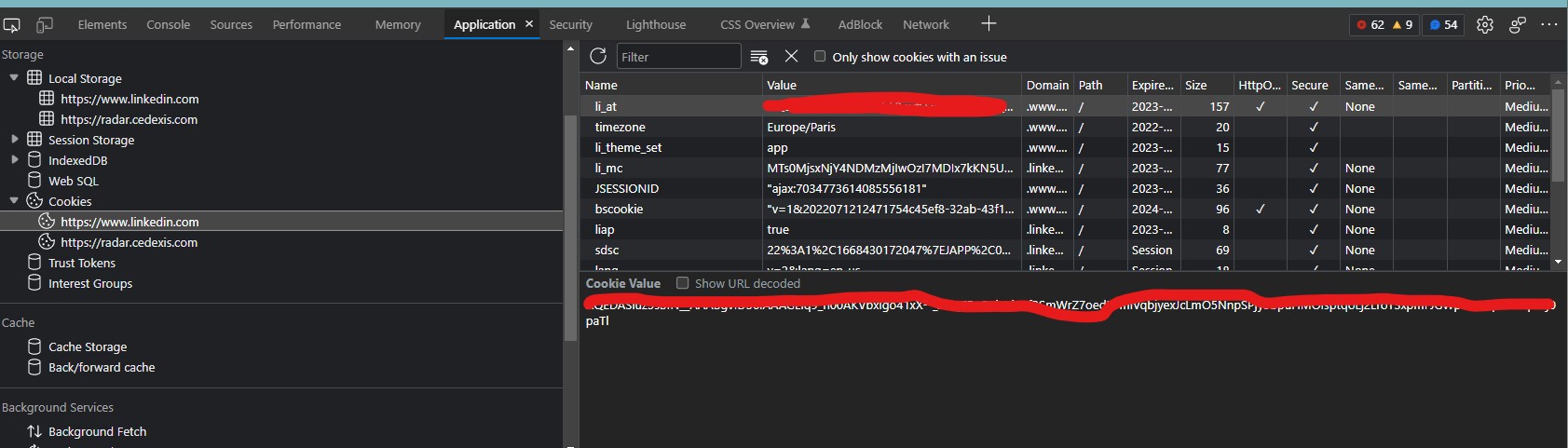
You need to copy the long text in the li_at and add a code to inject the cookie in your chromedriver, you can do so by the following code:
driver.get('https://www.linkedin.com')
driver.add_cookie({
    'name': 'li_at',
    'value': LINKEDIN_COOKIE,
    'domain': '.www.linkedin.com'
})
Simulating human actions
Extracting job links
Now that we have managed to authenticate our linkedin we can see the jobs we want to apply. Before applying however, we want to go to each of the job link to make our application process easier, so we will extract it using Beautifulsoup.
We first notice that the all job links are an “a” element with a data-control-id attribute, thus using CSS selectors, it is sufficient for us to extract all the a tags that inherits a data-control-id attribute.
We can do so by writing the following code:
driver.get(LINKEDIN_JOB_LINK)
time.sleep(2)
soup = BeautifulSoup(driver.page_source, features='lxml')
# Select 'a' element that contains data-control-id attribute
job_links = ["https://www.linkedin.com" + a["href"].split("?")[0]
             for a in soup.select("a[data-control-id][tabindex=\"0\"]")]
You can add more jobs in the page by scrolling down
Applying
Now that we have list of all job url in the page, we can go to each link and simulate an application process.
There are multiple ways to do it, for this example, we will inject a series of javascript that tells the browser to send a click event on a particular element. This can be done via running a javascript such as below:
document.querySelector("CSS_SELECTOR").click()We see that some easy apply jobs include some questions imposed by the recruitor, this is not good for our script, because it will be very complicated (but possible through NLP or heuristic algorithm) to add an answer for these questions, so for simplicity, we will just ignore the questions, and skip the jobs that have these questions.
We can add the following code to simulate the application process:
applied_jobs = 0
for link in job_links:
    in_form = True
    skip = False
    step = 0
    stop_reason = ""
    driver.get(link)
    time.sleep(2)
    form_soup = BeautifulSoup(driver.page_source, features='lxml')
    if len(form_soup.select("button[data-job-id]")) == 0:
        print("No button to apply detected")
        skip = True
        stop_reason = "No button to apply detected"
    else:
        driver.execute_script(
            "document.querySelector('button[data-job-id]').click()")
    while in_form and not skip:
        step += 1
        if step > 5:
            print("proceeding attempt exceeds 5 times, skipping..")
            stop_reason = "proceeding attempt exceeds 5 times, skipping.."
            skip = True
            in_form = False
        time.sleep(2)
        form_soup = BeautifulSoup(driver.page_source, features='lxml')
        if not skip:
            if len(form_soup.select("button[aria-label = 'Continue to next step']")) != 0:
                print("clicking next steps..")
                driver.execute_script(
                    "document.querySelector(\"button[aria-label = 'Continue to next step']\").click()")
            elif len(form_soup.select("button[aria-label = 'Review your application']")) != 0:
                print("clicking review")
                driver.execute_script(
                    "document.querySelector(\"button[aria-label = 'Review your application']\").click()")
            elif len(form_soup.select("button[aria-label = 'Submit application']")) != 0:
                print("clicking submit")
                # TO NOT FOLLOW THE COMPANY PAGE
                driver.execute_script(
                    "document.querySelector('#follow-company-checkbox').checked = false")
                driver.execute_script(
                    "document.querySelector(\"button[aria-label = 'Submit application']\").click()")
                in_form = False
                time.sleep(3)
    if not skip:
        applied_jobs += 1
        if applied_jobs > MAX_JOB:
            exit()
Wow thats a hefty amount of code! no worries, lets break it down.
Click the apply button
Basically this part is for iterating on each job links found from the search result, and checks whether there is a button to apply to the job or not (Sometimes it happens when the job is already applied by the user, the button to apply doesnt exist), if it exist then clicks it
for link in job_links:
    in_form = True
    skip = False
    step = 0
    stop_reason = ""
    driver.get(link)
    time.sleep(2)
    form_soup = BeautifulSoup(driver.page_source, features='lxml')
    if len(form_soup.select("button[data-job-id]")) == 0:
        print("No button to apply detected")
        skip = True
        stop_reason = "No button to apply detected"
    else:
        driver.execute_script(
            "document.querySelector('button[data-job-id]').click()")
In-form
This part is for the form it self, we will keep pressing either the next button, the review button, or the submit button, and if until 5 times, the submit button is still not clicked, we assume there is a required fields that stopping the form to go to the next steps, hence, we skip it
    while in_form and not skip:
        step += 1
        if step > 5:
            print("proceeding attempt exceeds 5 times, skipping..")
            stop_reason = "proceeding attempt exceeds 5 times, skipping.."
            skip = True
            in_form = False
        time.sleep(2)
        form_soup = BeautifulSoup(driver.page_source, features='lxml')
        if not skip:
            if len(form_soup.select("button[aria-label = 'Continue to next step']")) != 0:
                print("clicking next steps..")
                driver.execute_script(
                    "document.querySelector(\"button[aria-label = 'Continue to next step']\").click()")
            elif len(form_soup.select("button[aria-label = 'Review your application']")) != 0:
                print("clicking review")
                driver.execute_script(
                    "document.querySelector(\"button[aria-label = 'Review your application']\").click()")
            elif len(form_soup.select("button[aria-label = 'Submit application']")) != 0:
                print("clicking submit")
                # TO NOT FOLLOW THE COMPANY PAGE
                driver.execute_script(
                    "document.querySelector('#follow-company-checkbox').checked = false")
                driver.execute_script(
                    "document.querySelector(\"button[aria-label = 'Submit application']\").click()")
                in_form = False
                time.sleep(3)
Self-limits
And the last part is just for us to keep in mind the total number of jobs applied so we dont exceeds any limit imposed by Linkedin.
    if not skip:
        applied_jobs += 1
        if applied_jobs > MAX_JOB:
            exit()
Final code
In the final code below, I added a log feature that allows us keep track of all the jobs applied by the script, and if you want to use it, you can change a couple of things in the TO CHANGE BELOW section.
from bs4 import BeautifulSoup
from selenium import webdriver
import time
from webdriver_manager.chrome import ChromeDriverManager
import pandas as pd

# =============================================
# TO CHANGE BELOW
# =============================================

AUTHENTICATION_USING_COOKIE = False
LINKEDIN_JOB_LINK = "YOUR JOB LINK"
# if AUTHENTICATION_USING_COOKIE is true
LINKEDIN_COOKIE = "YOUR LINKEDIN COOKIE"
MAX_JOB = 10

# ==============================================


# Setting up
chrome = ChromeDriverManager()
chrome_options = webdriver.ChromeOptions()
chrome_options.add_argument('--no-sandbox')
chrome_options.add_argument('--disable-dev-shm-usage')
driver = webdriver.Chrome(chrome.install(), chrome_options=chrome_options)
driver.get("https://www.linkedin.com/")

# Authentication
if AUTHENTICATION_USING_COOKIE:
    if LINKEDIN_COOKIE == "":
        print("Missing linkedin cookie")
        exit()
    else:
        driver.get('https://www.linkedin.com')
        driver.add_cookie({
            'name': 'li_at',
            'value': LINKEDIN_COOKIE,
            'domain': '.www.linkedin.com'
        })
else:
    input("Are you logged in ?")


# Going to the job links
driver.get(LINKEDIN_JOB_LINK)
time.sleep(2)
soup = BeautifulSoup(driver.page_source, features='lxml')
# Select 'a' element that contains data-control-id attribute
job_links = ["https://www.linkedin.com" + a["href"].split("?")[0]
             for a in soup.select("a[data-control-id][tabindex=\"0\"]")]


# Applying for the jobs
LOG = []
applied_jobs = 0
for link in job_links:
    in_form = True
    skip = False
    step = 0
    stop_reason = ""
    driver.get(link)
    time.sleep(2)
    form_soup = BeautifulSoup(driver.page_source, features='lxml')
    if len(form_soup.select("button[data-job-id]")) == 0:
        print("No button to apply detected")
        skip = True
        stop_reason = "No button to apply detected"
    else:
        driver.execute_script(
            "document.querySelector('button[data-job-id]').click()")
    while in_form and not skip:
        step += 1
        if step > 5:
            print("proceeding attempt exceeds 5 times, skipping..")
            stop_reason = "proceeding attempt exceeds 5 times, skipping.."
            skip = True
            in_form = False
        time.sleep(2)
        form_soup = BeautifulSoup(driver.page_source, features='lxml')
        if not skip:
            if len(form_soup.select("button[aria-label = 'Continue to next step']")) != 0:
                print("clicking next steps..")
                driver.execute_script(
                    "document.querySelector(\"button[aria-label = 'Continue to next step']\").click()")
            elif len(form_soup.select("button[aria-label = 'Review your application']")) != 0:
                print("clicking review")
                driver.execute_script(
                    "document.querySelector(\"button[aria-label = 'Review your application']\").click()")
            elif len(form_soup.select("button[aria-label = 'Submit application']")) != 0:
                print("clicking submit")
                # TO NOT FOLLOW THE COMPANY PAGE
                driver.execute_script(
                    "document.querySelector('#follow-company-checkbox').checked = false")
                driver.execute_script(
                    "document.querySelector(\"button[aria-label = 'Submit application']\").click()")
                in_form = False
                time.sleep(3)
    if not skip:
        LOG += [
            {
                "link": link,
                "applied": "yes"
            }
        ]
        applied_jobs += 1
        if applied_jobs > MAX_JOB:
            exit()
    else:
        LOG += [
            {
                "link": link,
                "applied": "no",
                "reason": stop_reason
            }
        ]
    pd.DataFrame(LOG).to_csv("./log.csv")
Conclusion
In this post, we went over how we can use Python to automate your life to apply for jobs in Linkedin, keep in mind that I am not promoting this method to be the best method to find a job, but it is just a good python exercise while also show how learning python can really be helpful on your day to day life!